Laptop crashes are more than a small headache. When your screen freezes or your PC suddenly restarts, it is your computer trying to tell you something is wrong. If this keeps happening, it can mess up your work, your grades, and even your important files.
In this article, we will explain what frequent crashes reveal about your laptop's health, why they often get worse over time, and what signs you should never ignore. We will also share simple checks you can do on your own and when it is time to look for professional computer repair in Singapore.
When Laptop Crashes Become a Serious Warning
Picture a laptop crashing right before a big work presentation, during a school project, or just as your manager asks for your mid-year report in June. The screen freezes, the fan gets loud, then the whole thing shuts down. You restart, hope for the best, and keep going, but it keeps happening.
Those repeated crashes are not just random bad luck. They are often early warning signs of:
- Hardware parts starting to fail
- Software problems that keep stacking up
- Possible data damage that has already begun
If you catch these warnings early, you can often fix the issue before you lose work or the laptop dies completely. If you ignore them, small glitches can grow into full system failure, where repairs take longer and data recovery becomes harder.
What Frequent Crashes Say About Your System's Health
When a laptop crashes more than once in a while, it usually points to a deeper problem. These issues can sit under the surface for weeks before they finally break something important.
Common signs of trouble include:
- Blue screens or error codes that pop up again and again
- Sudden restarts without warning
- Complete system freezes where only a hard power off works
These can be linked to failing hardware, such as:
- RAM that cannot handle normal work anymore
- Hard drives or SSDs that are starting to break
- CPUs that run too hot and shut down to protect themselves
On the software side, crashes can happen because of:
- Corrupted system files after a bad shutdown
- Driver conflicts after installing new devices
- Malware infections that change system settings
- New programs or big OS updates that are not fully stable
Each crash also brings a serious risk to your files. If the system goes down while you are saving a document, copying photos, or updating software, the file can get corrupted. Over time, you might notice:
- Documents that will not open
- Photos or videos that show errors
- Programs that crash when you load certain files
At that point, data recovery becomes more complex, and sometimes only a professional repair shop can safely recover what is left.
Hidden Hardware Problems Behind Constant Crashes
In Singapore's hot and humid climate, laptops often struggle with heat. During mid-year, when people are working on appraisals, exams, and projects, machines also tend to run heavier tasks for longer hours.
Overheating can cause:
- Sudden shutdowns when the CPU gets too hot
- Fans spinning loudly all the time
- The bottom of the laptop feeling very hot
Inside the laptop, dust can clog the fans, and old thermal paste can dry out. This makes cooling much weaker, so the CPU and GPU hit high temperatures faster and trigger safety shutdowns.
Failing RAM and storage drives are another hidden cause of crashes. You might notice:
- Random reboots while doing simple tasks
- Programs closing by themselves
- Very slow startup times
- Clicking or grinding noises from a hard disk
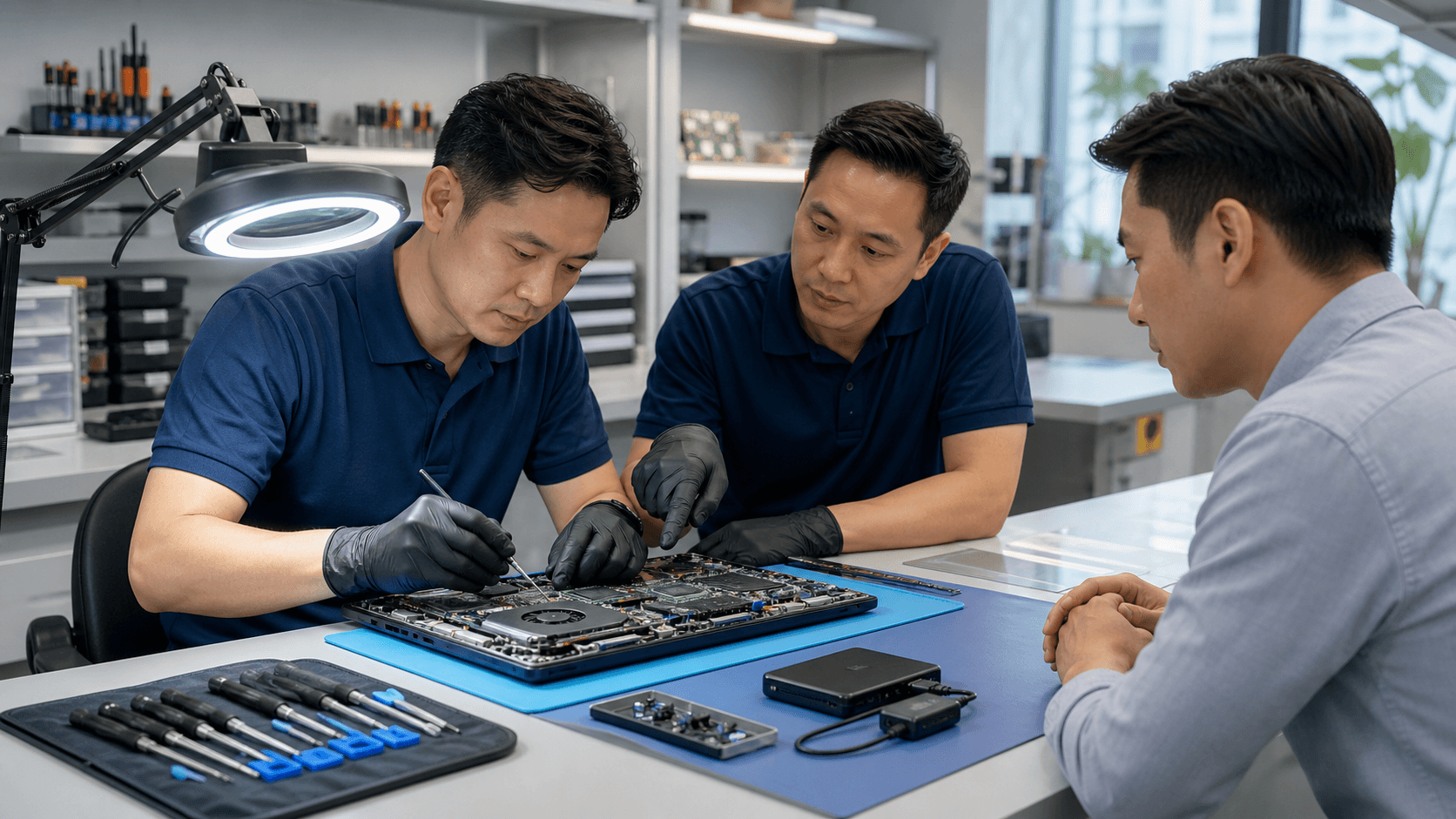
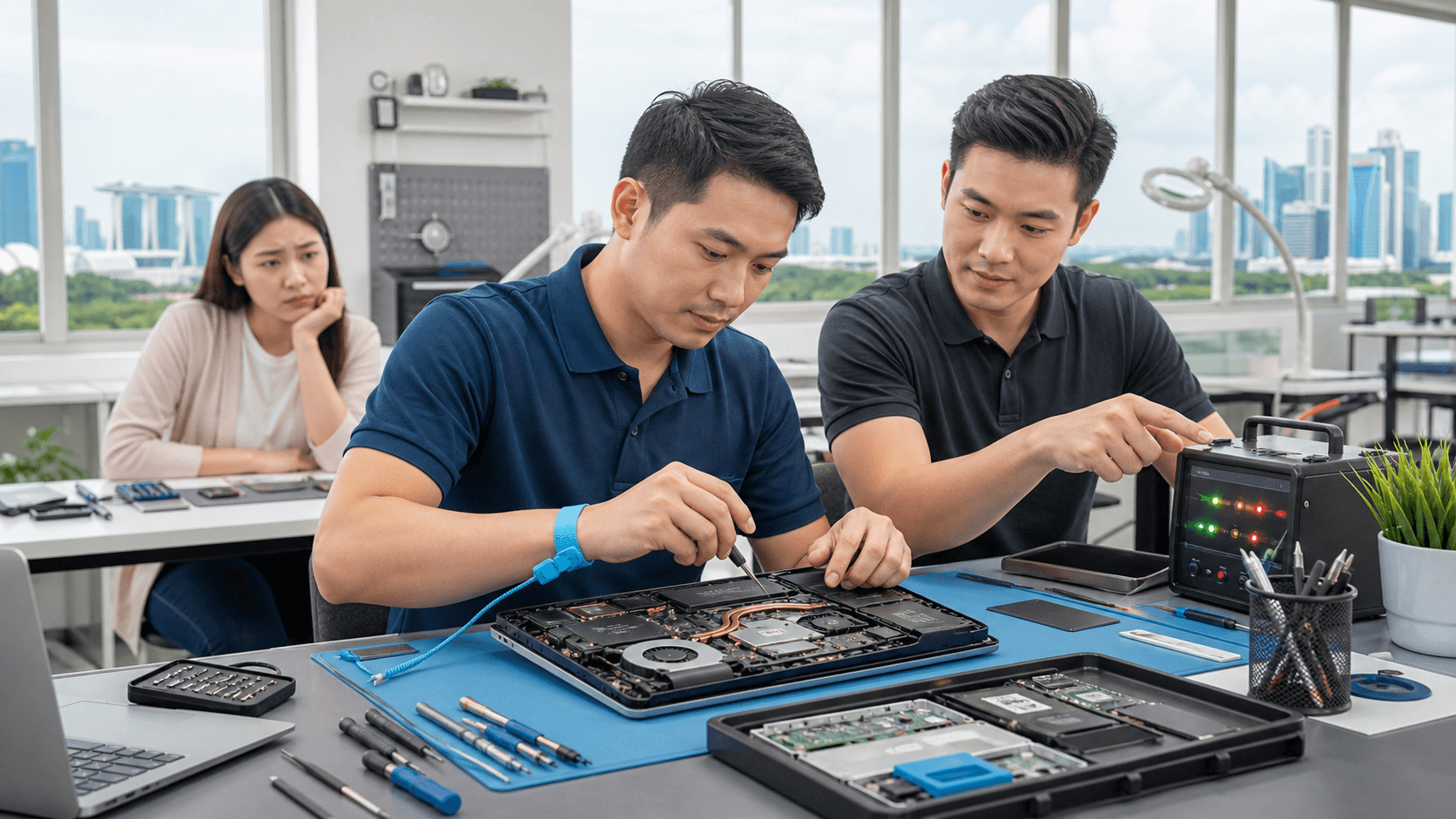
Those sounds from a hard disk are a strong warning that the drive could fail at any time. A trained technician can:
- Run hardware diagnostics to test RAM, drives, and other parts
- Open the laptop safely without damaging fragile clips or cables
- Clean the cooling system and refresh thermal paste
- Replace failing parts before they damage more components
Catching these issues early can save your data and extend the life of your computer.
Software Glitches, Viruses, and Bad Updates
Not every crash means a part is broken. Software can also cause a lot of trouble, especially after updates or new installs.
Some common software triggers are:
- Outdated or broken drivers for graphics, Wi-Fi, or other hardware
- Incomplete Windows or macOS updates
- Corrupted system files from forced shutdowns or power cuts
These can cause:
- Blue screens when starting the PC
- Crashes when opening certain apps or games
- Boot loops where the system keeps restarting and never reaches the desktop
Malware and viruses can also make your laptop unstable. Warning signs include:
- Random pop-ups or strange toolbars
- Very high CPU usage even when nothing heavy is running
- Crashes when you open your browser or connect to the internet
Trying DIY fixes with random "registry cleaners" or unverified tools you find online can make things worse. They might delete important system entries, remove needed drivers, or add more malware. A proper cleanup by a trusted provider of computer repair in Singapore can remove infections, repair damaged files, and restore stability in a safer way.
When Crashes Threaten Your Data and Productivity
Mid-year is a busy time. Students are working on projects and exams, offices are rushing through appraisals and reports, and many people are preparing financial documents. A crashing laptop during this period does not just ruin your mood; it can ruin your work.
Crashes that happen during:
- File transfers to a USB drive or external disk
- Software installs or updates
- System backups
can corrupt both the files you are moving and the files on the main drive. When that happens, data recovery takes more time and may not bring everything back.
Good backup habits help reduce the damage. Simple options include:
- External hard drives or SSDs for regular copies of your files
- Cloud storage for important documents and photos
- Scheduled backups set to run automatically in the background
A professional repair center can help set up backup systems that match how you use your computer, whether it is for work, school, or gaming, so a single crash does not wipe out months of effort.
Smart Next Steps Before Calling a Technician
Before you hand your laptop to a technician, you can do a few safe checks that help narrow down the problem.
Useful simple steps include:
- Note when crashes happen, for example while gaming, during video calls, or at startup
- Disconnect new devices like printers, USB hubs, or external drives
- Check for pending system updates, and install them if the laptop can stay stable
- Run built-in diagnostics if your system has them
- Make sure the laptop has good airflow on a hard, flat surface
There are also things you should avoid:
- Do not open the laptop case without the right tools and experience
- Do not ignore burning smells, sparks, or loud grinding or rattling noises
- Do not keep forcing restarts after repeated blue screens or failed boots
Before you bring the laptop in, gather helpful details such as:
- Any error messages or blue screen codes you noticed
- Recent changes, like new software, drivers, or updates
- Whether you have a recent backup of important files
All these clues help a repair technician find the cause faster so you can get back to work, study, or gaming with less downtime.
Get Fast, Reliable Repairs From Local Experts
If your laptop or PC is slowing you down, we are ready to diagnose and fix the issue quickly so you can get back to work. At Singapore Laptop Repair, our technicians provide trusted computer repair in Singapore tailored to your specific device and needs. We focus on accurate troubleshooting, clear pricing, and quality parts, so you know exactly what you are getting. Reach out today to schedule your repair and let us restore your computer's performance.